











CleanupMonster is a PowerShell module that helps you clean up Active Directory and stale cloud device records.
It has multiple functionalities currently & planned:
- Cleanup stale Computer objects from Active Directory
- Cleanup SID History from Active Directory
- Cleanup stale Microsoft Entra registered mobile devices from the cloud side
- Cleanup stale User objects from Active Directory
- Cleanup stale Group objects from Active Directory
- Cleanup GMSA/MSA objects from Active Directory
There are 2 blog posts that explain how to use the module:
- Mastering Active Directory Hygiene: Automating Stale Computer Cleanup with CleanupMonster
- Mastering Active Directory Hygiene: Automating SID History Cleanup with CleanupMonster
The solution is really thought through and has many options to customize it to your needs. It's a complete solution for cleaning up Active Directory. Please make sure to run this module with proper permissions or you may get wrong results. By default Active Directory domain allows a standard user to read LastLogonDate and LastPasswordSet attributes. If you have changed those settings you may need to run the module with elevated permissions even for reporting needs.
If you find this project helpful, please consider supporting its development. Your sponsorship will help the maintainers dedicate more time to maintenance and new feature development for everyone.
It takes a lot of time and effort to create and maintain this project. By becoming a sponsor, you can help ensure that it stays free and accessible to everyone who needs it.
To become a sponsor, you can choose from the following options:
Your sponsorship is completely optional and not required for using this project. We want this project to remain open-source and available for anyone to use for free, regardless of whether they choose to sponsor it or not.
If you work for a company that uses our .NET libraries or PowerShell Modules, please consider asking your manager or marketing team if your company would be interested in supporting this project. Your company's support can help us continue to maintain and improve this project for the benefit of everyone.
Thank you for considering supporting this project!
Install-Module -Name CleanupMonster -Force -VerboseUse PowerShell 7 for cloud-device cleanup and AD cleanup that queries Microsoft Graph. Install GraphEssentials separately for those paths:
Install-Module -Name GraphEssentials -ForceStart a fresh PowerShell session after updating these modules. Windows PowerShell 5.1 remains available for AD-only use; the current Microsoft Graph SDK and event-log dependencies have conflicting shared libraries in that runtime.
CleanupMonster is built for teams that want Active Directory cleanup to feel deliberate, staged, and reviewable instead of risky and opaque. Every cleanup path starts with discovery, can generate HTML output for review, and can be wrapped in limits, pending lists, and WhatIf controls before anything destructive happens.
Whether you are retiring stale computers, pruning unused MSA / gMSA objects, or removing legacy SID history after migrations, the module is designed to help you choose the right cleanup track for the problem in front of you.
Warning
Run the module with the permissions required to read the attributes you rely on. In a default AD configuration that often includes LastLogonDate and PasswordLastSet, but hardened environments may require elevated rights even for reporting-only runs.
CleanupMonster is easiest to understand as four end-to-end cleanup paths. They all start with discovery and reporting, but each one is optimized for a different cleanup problem.
Tip
If you are new to the module, start with -ReportOnly and -WhatIf, keep limits low, and validate the generated HTML output before enabling destructive actions.
flowchart LR
    classDef computer fill:#D9F2E6,stroke:#1F7A4D,stroke-width:2px,color:#123524;
    classDef cloud fill:#E6FFFA,stroke:#2C7A7B,stroke-width:2px,color:#234E52;
    classDef service fill:#FFF0CC,stroke:#B7791F,stroke-width:2px,color:#5B3A00;
    classDef sid fill:#DCEBFF,stroke:#2B6CB0,stroke-width:2px,color:#153E75;
    classDef action fill:#F7FAFC,stroke:#4A5568,stroke-width:1px,color:#1A202C;

    A["CleanupMonster"] --> B["Computer cleanup"]
    A --> C["Cloud-device cleanup"]
    A --> D["Service-account cleanup"]
    A --> E["SID history cleanup"]

    B --> B1["Disable"]
    B --> B2["Move"]
    B --> B3["DisableAndMove"]
    B --> B4["Delete after pending age"]

    C --> C1["Retire in Intune"]
    C --> C2["Disable in Entra"]
    C --> C3["Delete after pending age"]
    C --> C4["Explicit orphan handling"]

    D --> D1["Disable"]
    D --> D2["Delete"]
    D --> D3["Explicit selectors and low limits"]

    E --> E1["Discover SID history"]
    E --> E2["Filter by OU / object type / SID domain"]
    E --> E3["Remove with small limits"]

    class B,B1,B2,B3,B4 computer;
    class C,C1,C2,C3,C4 cloud;
    class D,D1,D2,D3 service;
    class E,E1,E2,E3 sid;
    class A action;
| Area | Cmdlet | Best for | Typical actions | Recommended mindset |
|---|---|---|---|---|
| Computer cleanup | Invoke-ADComputersCleanup |
Stale computer lifecycle management in AD, optionally cross-checked against Azure AD, Intune, and Jamf | Disable, move, disable-and-move, delete | Stage changes across multiple runs |
| Cloud device cleanup | Invoke-CloudDevicesCleanup |
Stale Microsoft Entra registered mobile devices that need Intune retire and Entra cleanup | Retire, disable, delete | Retire first, then enforce grace periods |
| Service-account cleanup | Invoke-ADServiceAccountsCleanup |
Reviewing and cleaning stale MSA / gMSA objects with stronger destructive-run guardrails |
Disable, delete | Start narrow and require explicit selectors |
| SID history cleanup | Invoke-ADSIDHistoryCleanup |
Removing legacy SID history entries with detailed before/after reporting | Report, selective remove | Start with discovery and tiny limits |
Recommended first commands for each path:
# Computer cleanup preview
Invoke-ADComputersCleanup -Disable -ReportOnly -WhatIf -ShowHTML

# Cloud device cleanup preview
Invoke-CloudDevicesCleanup -Retire -ReportOnly -WhatIf -ShowHTML

# Service-account cleanup preview
Invoke-ADServiceAccountsCleanup -Disable -ReportOnly -WhatIf -IncludeAccounts 'gmsa-*'

# SID history cleanup preview
Invoke-ADSIDHistoryCleanup -ReportOnly -WhatIfComputer cleanup is the richest workflow in the module. It is built for staged remediation of stale computer objects rather than one immediate destructive pass.
Use it when you want to:
- find stale AD computer objects
- optionally require Azure AD, Intune, or Jamf inactivity before actioning AD
- disable first and delete later
- move devices to a quarantine OU before final deletion
- keep a pending list as a safety buffer across multiple runs
Typical lifecycle:
flowchart LR
    classDef stage fill:#D9F2E6,stroke:#1F7A4D,stroke-width:2px,color:#123524;
    classDef gate fill:#FFF7E6,stroke:#B7791F,stroke-width:2px,color:#5B3A00;
    classDef outcome fill:#EDF2F7,stroke:#4A5568,stroke-width:1px,color:#1A202C;

    A["Discover stale computers"] --> B{"Matches disable filters?"}
    B -- "No" --> Z["Remain untouched"]
    B -- "Yes" --> C["Disable"]
    C --> D{"DisableAndMove enabled?"}
    D -- "Yes" --> E["Move to quarantine OU"]
    D -- "No" --> F["Add to pending list"]
    E --> F
    F --> G{"Later matches move or delete gates?"}
    G -- "Move path" --> H["Move-only follow-up"]
    G -- "Delete path" --> I["Delete after pending-age threshold"]

    class A,C,E,F,H,I stage;
    class B,D,G gate;
    class Z outcome;
What matters most:
-WhatIfnow flows to move actions as well as disable/delete actions-Moveis a first-class path, not just a side effect of disable-DisableAndMovebehaves like a disable workflow during discovery and then performs the move during execution- pending-list timing in the datastore lets you separate disable, move, and delete into different operational windows
Good starter profiles:
- pilot:
-ReportOnly -WhatIf -Disable - staged remediation:
-Disablenow, then-DeleteListProcessedMoreThanlater - quarantine-first:
-DisableAndMove -DisableMoveTargetOrganizationalUnit ... - cloud-aware cleanup: add Azure AD / Intune / Jamf inactivity thresholds and safety limits
Relevant examples:
Examples/DeleteComputers.ps1Examples/DeleteComputersWithMoveAndEmail.ps1Examples/DeleteComputersWithO365.ps1Examples/DeleteComputersWithO365andJAMF.ps1
Cloud device cleanup is the Microsoft Entra and Intune companion workflow for stale mobile devices. It is intentionally separate from AD computer cleanup because the lifecycle is different: Intune-managed devices should normally be retired first, while Microsoft Entra directory objects should be disabled and held for a grace period before final deletion.
Use it when you want to:
- review stale Microsoft Entra registered
iOSandAndroiddevices - distinguish matched devices from
EntraOnlyandIntuneOnlyorphan records - retire managed devices first and keep a pending list before later disable/delete steps
- clean up Intune-only orphan records that no longer have a matching Entra device object
Typical lifecycle:
flowchart TD
    classDef stage fill:#FFF0CC,stroke:#B7791F,stroke-width:2px,color:#5B3A00;
    classDef gate fill:#FFF7E6,stroke:#B7791F,stroke-width:2px,color:#5B3A00;
    classDef safety fill:#FFE5E5,stroke:#C53030,stroke-width:2px,color:#742A2A;
    classDef outcome fill:#EDF2F7,stroke:#4A5568,stroke-width:1px,color:#1A202C;

    A["Discover Entra and Intune records"] --> B{"Activity timestamps present?"}
    B -- "Missing required activity" --> Z["Exclude from destructive actions"]
    B -- "Usable activity" --> C{"Matched or orphan?"}

    C -- "Matched or IntuneOnly allowed" --> D["Retire in Intune"]
    D --> E["Store real successful action in PendingActions"]
    E --> F{"Later run: still stale and pending age met?"}

    C -- "Matched or EntraOnly allowed" --> G{"Entra Enabled known?"}
    G -- "Unknown" --> U["Treat as unsafe"]
    G -- "Enabled = true" --> H["Disable in Entra"]
    H --> E

    F -- "Disable gate" --> G
    F -- "Delete gate" --> I{"Entra Enabled = false or IntuneOnly?"}
    I -- "No / unknown" --> U
    I -- "Yes" --> J["Delete Entra object and eligible Intune record"]
    F -- "Activity changed or disappeared" --> Z

    class A,D,E,H,J stage;
    class B,C,F,G,I gate;
    class U safety;
    class Z outcome;
What matters most:
- inventory now includes
Matched,EntraOnly, andIntuneOnlyrecord states - action candidates include a
SelectionReasonso reports explain why a device qualified - orphan records are discovered by default, but stage-specific orphan processing now requires explicit switches
- default scope is mobile-first:
iOSandAndroid, with company-owned devices excluded unless requested - hybrid Azure AD joined, Azure AD joined, synchronized, non-registered, and unknown registration states are excluded from cloud-device cleanup; use
Invoke-ADComputersCleanupfor hybrid device lifecycle cleanup - same-name Windows Autopilot hybrid/cloud-join duplicate groups are preserved from cloud cleanup actions by default; use
-PreserveDuplicateDeviceNames:$falseonly after reviewing the duplicate set in the report - blank current activity is unsafe for destructive selection, including when a pending device had activity before but the current inventory loses it
- Entra-backed disable requires
Enabled -eq $true; Entra-backed delete requiresEnabled -eq $false; unknown enabled state is treated as unsafe -ReportOnlydoes not write updated cleanup state; top-level-WhatIfand action-specific preview switches save attempted previews inHistorybut do not add devices toPendingActions-Confirmprompts at the top-level action stage before destructive retire, disable, or delete requests are submitted
Recommended production stance:
- discover all record states in the report
- action matched records first
- enable
-RetireIncludeIntuneOnly,-DisableIncludeEntraOnly,-DeleteIncludeEntraOnly, and-DeleteIncludeIntuneOnlyonly after reviewing orphan behavior in your tenant - use
SafetyEntraLimitandSafetyIntuneLimitto stop cleanup when Graph returns suspiciously low inventory - keep
RetireLimit,DisableLimit, andDeleteLimitlow until the report output matches expectations - store
DataStorePathsomewhere durable and backed up, because staged cleanup depends on the pending-action history
Relevant examples:
Examples/CleanupCloudDevicesPreview.ps1Examples/CleanupCloudDevicesStaged.ps1
Service-account cleanup is intentionally narrower and safer than computer cleanup. It is designed for MSA and gMSA hygiene where you want low limits and explicit destructive intent.
Use it when you want to:
- review stale managed service accounts
- limit scope with age filters or
IncludeAccounts - keep disable/delete limits very small during rollout
- avoid disabling and deleting the same account in the same run
Typical lifecycle:
flowchart LR
    classDef stage fill:#FFF0CC,stroke:#B7791F,stroke-width:2px,color:#5B3A00;
    classDef gate fill:#FFF7E6,stroke:#B7791F,stroke-width:2px,color:#5B3A00;
    classDef outcome fill:#EDF2F7,stroke:#4A5568,stroke-width:1px,color:#1A202C;

    A["Discover service accounts"] --> B{"Explicit selectors or age filters?"}
    B -- "No destructive criteria" --> Z["Allow preview only"]
    B -- "Yes" --> C["Find disable candidates"]
    C --> D["Disable with low limits"]
    D --> E["Find delete candidates"]
    E --> F{"Already scheduled for disable?"}
    F -- "Yes" --> G["Skip delete in this run"]
    F -- "No" --> H["Delete with low limits"]

    class A,C,D,E,G,H stage;
    class B,F gate;
    class Z outcome;
What matters most:
- destructive disable/delete runs require explicit selection criteria
IncludeAccountscounts as an explicit selector- preview scenarios with
-ReportOnly,-WhatIf,-WhatIfDisable, or-WhatIfDeleteare allowed even without destructive selectors - accounts scheduled for disable in a run are skipped from delete in that same run
- missing
LastLogonDate,PasswordLastSet, orWhenCreatedvalues are not treated as stale unless you explicitly enable the matchingTreatMissing*AsStaleswitch - gMSA password retrieval principals are reported, and
-DisableNoPrincipalsAllowedToRetrieveManagedPassword/-DeleteNoPrincipalsAllowedToRetrieveManagedPasswordcan require a gMSA to have no assigned retrieval principals before action
Good starter profiles:
- preview by name pattern:
-Disable -ReportOnly -WhatIf -IncludeAccounts 'gmsa-*' - safer scheduled run: explicit include/exclude patterns plus low
DisableLimitandDeleteLimit - age-based hygiene: combine
LastLogonDateMoreThan,PasswordLastSetMoreThan,WhenCreatedMoreThan, and optional gMSA assignment checks
Relevant examples:
Examples/CleanupServiceAccounts.ps1
SID history cleanup is for post-migration and trust-hygiene work. It is optimized for discovering targeted SID history entries, filtering them carefully, and removing them with very small limits at first.
Use it when you want to:
- discover which objects still carry SID history
- narrow scope by source SID domain, OU, object type, or trust type
- clean up legacy migration artifacts with strong before/after reporting
- remove only a few SIDs or a few objects per run until the results are proven
Typical lifecycle:
flowchart LR
    classDef stage fill:#DCEBFF,stroke:#2B6CB0,stroke-width:2px,color:#153E75;
    classDef gate fill:#EAF4FF,stroke:#2B6CB0,stroke-width:2px,color:#153E75;
    classDef outcome fill:#EDF2F7,stroke:#4A5568,stroke-width:1px,color:#1A202C;

    A["Discover objects with SID history"] --> B["Filter by OU / object type / SID domain / trust type"]
    B --> C{"ReportOnly or WhatIf?"}
    C -- "Yes" --> Z["Review targeted objects and counts"]
    C -- "No" --> D["Remove targeted SID values"]
    D --> E["Refresh object after each SID removal"]
    E --> F{"Reached object or SID limit?"}
    F -- "No" --> D
    F -- "Yes" --> G["Stop and report current state"]

    class A,B,D,E,G stage;
    class C,F gate;
    class Z outcome;
What matters most:
- you can filter by object type, OU, SID source domain, and trust type
RemoveLimitSIDandRemoveLimitObjectlet you keep the blast radius intentionally small- each SID removal is tracked with before/after state so the report remains reviewable even for multi-SID objects
Good starter profiles:
- full discovery:
-ReportOnly -WhatIf - migration cleanup by domain SID: use
IncludeSIDHistoryDomain - targeted validation run: set both
RemoveLimitSIDandRemoveLimitObjectto1or2
Relevant examples:
Examples/DeleteSIDHistory.ps1
CleanupMonster is designed to be used with multiple layers of safety. You do not need every guard in every environment, but you should choose a guard set deliberately.
These are good defaults almost everywhere:
-ReportOnlyfor first-pass validation- top-level
-WhatIffor broad previews - top-level
-Confirmfor interactive confirmation before destructive action batches - action-specific
-WhatIfRetire,-WhatIfDisable,-WhatIfMove, and-WhatIfDeletewhen you want mixed behavior - low action limits during rollout, then widen later
- HTML reporting plus log files for every scheduled run
These help ensure your data sources are healthy before any action happens:
SafetyADLimitto suppress mutations if AD returns fewer objects than expected while still writing the reportSafetyAzureADLimit,SafetyIntuneLimit, andSafetyJamfLimitwhen cloud/device-source validation mattersSafetyEntraLimitandSafetyIntuneLimitfor cloud-device cleanup to stop on partial Microsoft Graph inventoryTargetServerswhen you want deterministic domain-controller selection and failoverDomainFailureAction Stop(the default) to suppress all AD mutations when any included domain cannot be inventoried
These reduce risk in destructive cleanup patterns:
- pending-list aging via
DeleteListProcessedMoreThanorMoveListProcessedMoreThan - OU quarantine with
-Moveor-DisableAndMove - exclusions for known-sensitive OUs, names, or systems
- cloud-device activity and enabled-state checks that treat missing data as unsafe for destructive cleanup
- explicit orphan switches before cloud cleanup actions touch
EntraOnlyorIntuneOnlyrecords - service-account explicit selectors before destructive runs
- protected-from-accidental-deletion checks for move/delete operations
| Environment maturity | Suggested guard set |
|---|---|
| First lab / pilot | -ReportOnly, top-level -WhatIf, low limits, HTML report, log file |
| Early production rollout | Explicit exclusions, low limits, AD safety limit, pending-list staging, action-specific WhatIf for risky steps |
| Mature production automation | AD and cloud safety limits, staged disable/delete windows, OU quarantine, durable datastores, reports/logs, explicit target servers where needed |
For multi-domain AD cleanup, provide an ordered list of preferred DCs for each domain. CleanupMonster tries those servers first, then any writable DCs found during forest discovery:
$TargetServers = @{
    'contoso.com'       = @('dc1.contoso.com', 'dc2.contoso.com')
    'child.contoso.com' = @('dc1.child.contoso.com', 'dc2.child.contoso.com')
}

Invoke-ADComputersCleanup `
    -Disable `
    -TargetServers $TargetServers `
    -ADQueryMaxRetries 3 `
    -DomainFailureAction Stop `
    -ShowHTML
Stop still writes an HTML report, but marks it incomplete and prevents disable, move, delete, datastore updates, and pending-list pruning. ContinueSuccessfulDomains is an explicit opt-in for independent domains: actions and pending-list maintenance are limited to domains whose inventory completed successfully, while failed-domain state is left untouched.
If you are introducing CleanupMonster into an environment for the first time, this is a good default operating model:
- Run report-only previews and validate the HTML output with your AD owners.
- Enable disable-only or disable-and-move with low limits.
- Review pending-list behavior for several runs.
- Add delete or move-after-delay thresholds only after the staged output is stable.
- Increase limits gradually once the rules are proven.
For service accounts, start even narrower:
- use
IncludeAccountsor very explicit age filters - keep
DisableLimit/DeleteLimitlow - review the report
- then automate
For cloud devices, treat missing Graph data as a stop sign:
- run
Invoke-CloudDevicesCleanup -Retire -Disable -Delete -ReportOnly -WhatIf -ShowHTML - review
Matched,EntraOnly, andIntuneOnlyrecords separately - keep orphan action switches disabled until you understand tenant-specific orphan patterns
- set
SafetyEntraLimitandSafetyIntuneLimitbefore production runs - enable retire first, then disable/delete only after pending-age behavior is proven
For SID history, start by discovering:
- run in report mode
- filter to a known source SID domain, OU, or object type
- set low
RemoveLimitObject/RemoveLimitSID - then expand when the before/after report looks right
The sections below go deeper into each cleanup path with concrete commands, screenshots, and scheduled-task examples you can adapt for your own environment.
Note
The earlier sections help you pick the right cleanup track. The walkthroughs below show how to operate each track in practice once you know which one you want.
This is the full staged device-cleanup path, from first report to scheduled automation and cloud-aware validation.
The first thing you should do is to run the module in a report only mode. It will show you how many computers are there to disable and delete.
$Output = Invoke-ADComputersCleanup -WhatIf -ReportOnly -Disable -Delete -ShowHTML
$Output
Keep in mind it works with default values such as 180 days for LastLogonDate and LastPasswordSet. You can change those values by using parameters.
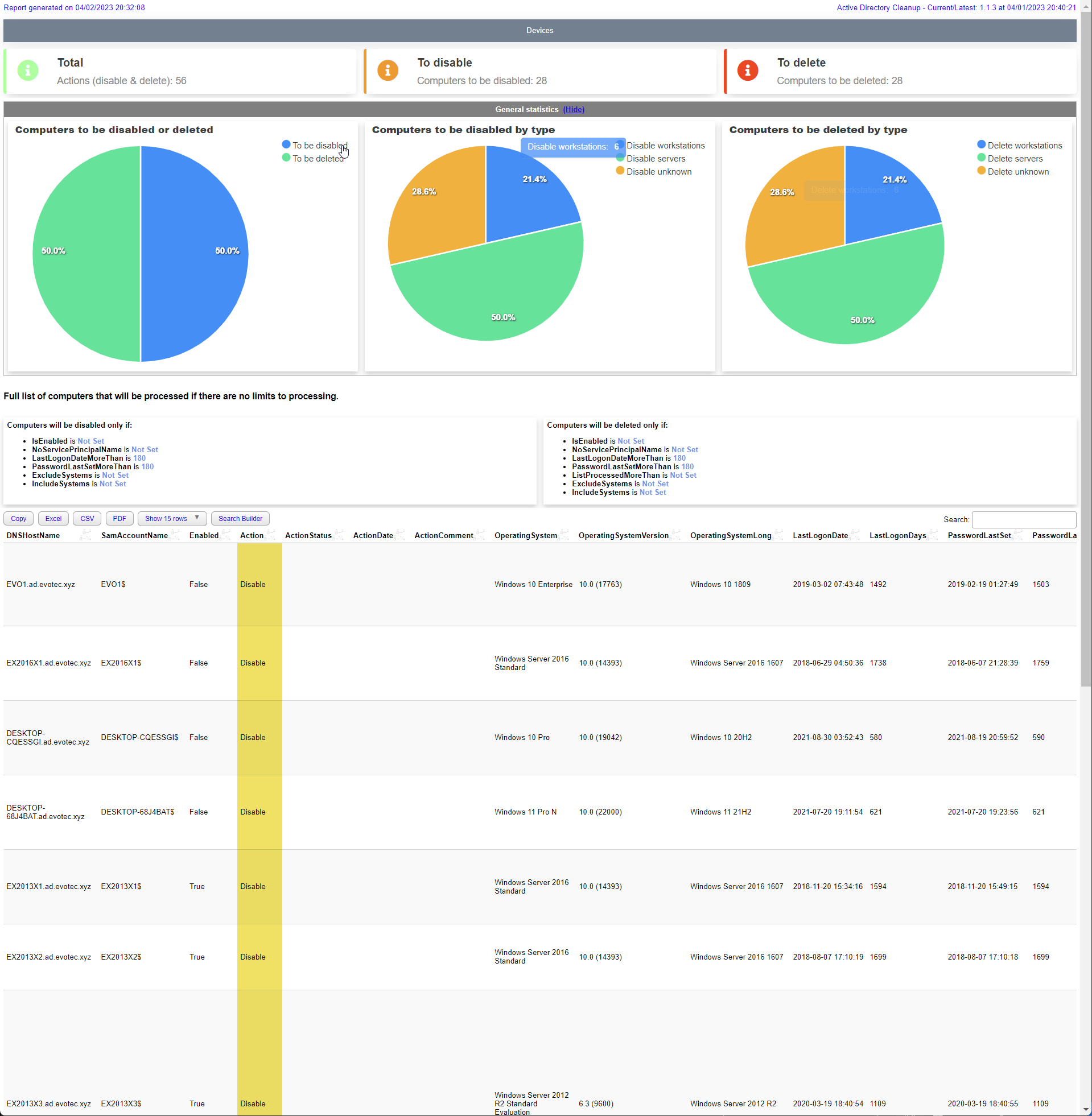
This is a sample script that you can use to run the module interactively. It's good idea to run it interactively first to clean your AD and then run it in a scheduled task.
# this is a fresh run and it will try to disable computers according to it's defaults
$Output = Invoke-ADComputersCleanup -Disable -WhatIfDisable -ShowHTML
$Output
When you run cleanup the module will deliver HTML report on every run. It will show you:
- Devices in Current Run (Actioned)
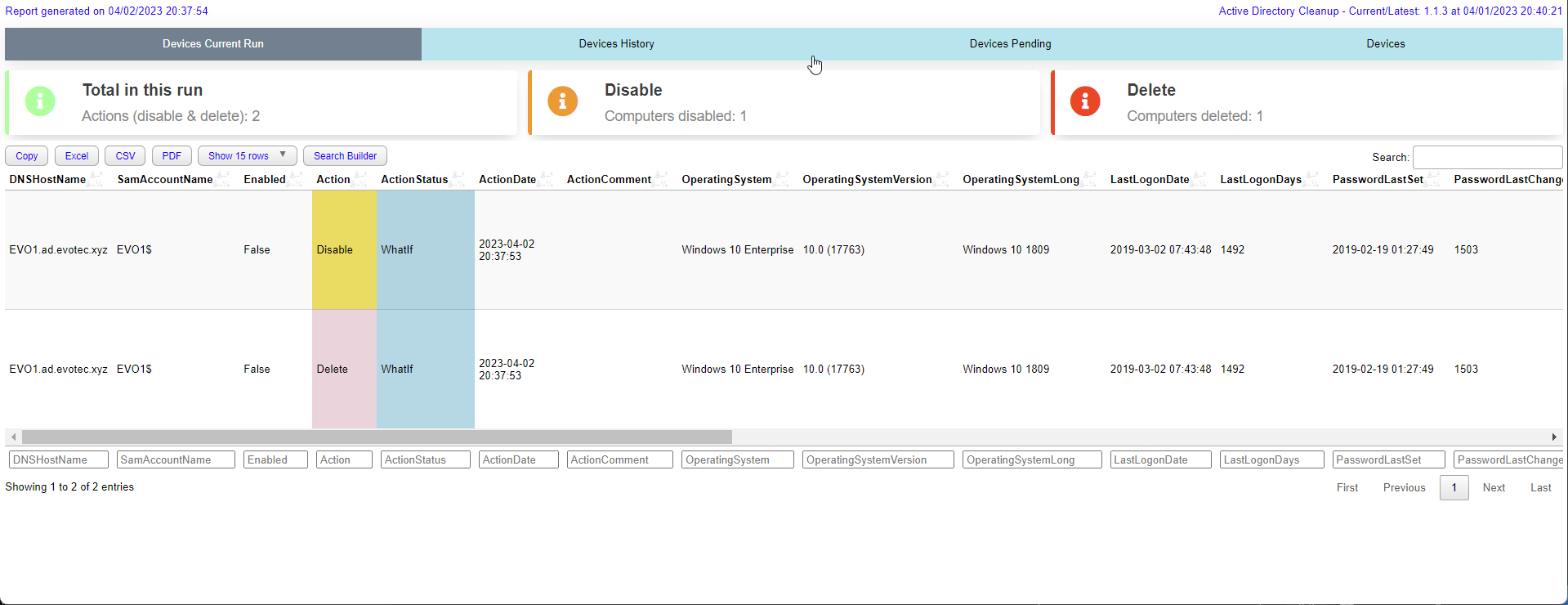
- Devices in Previous Runs (History)
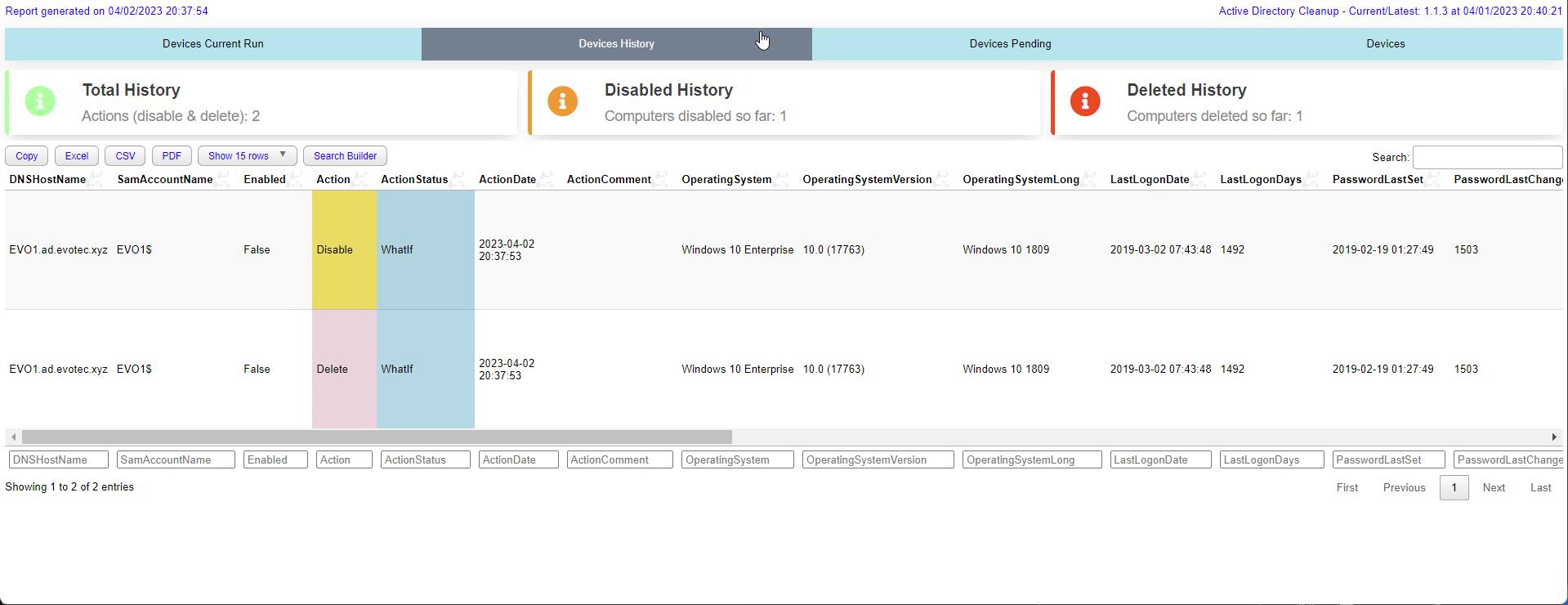
- Devices on Pending List (Pending deletion)

- All Devices (All) remaining
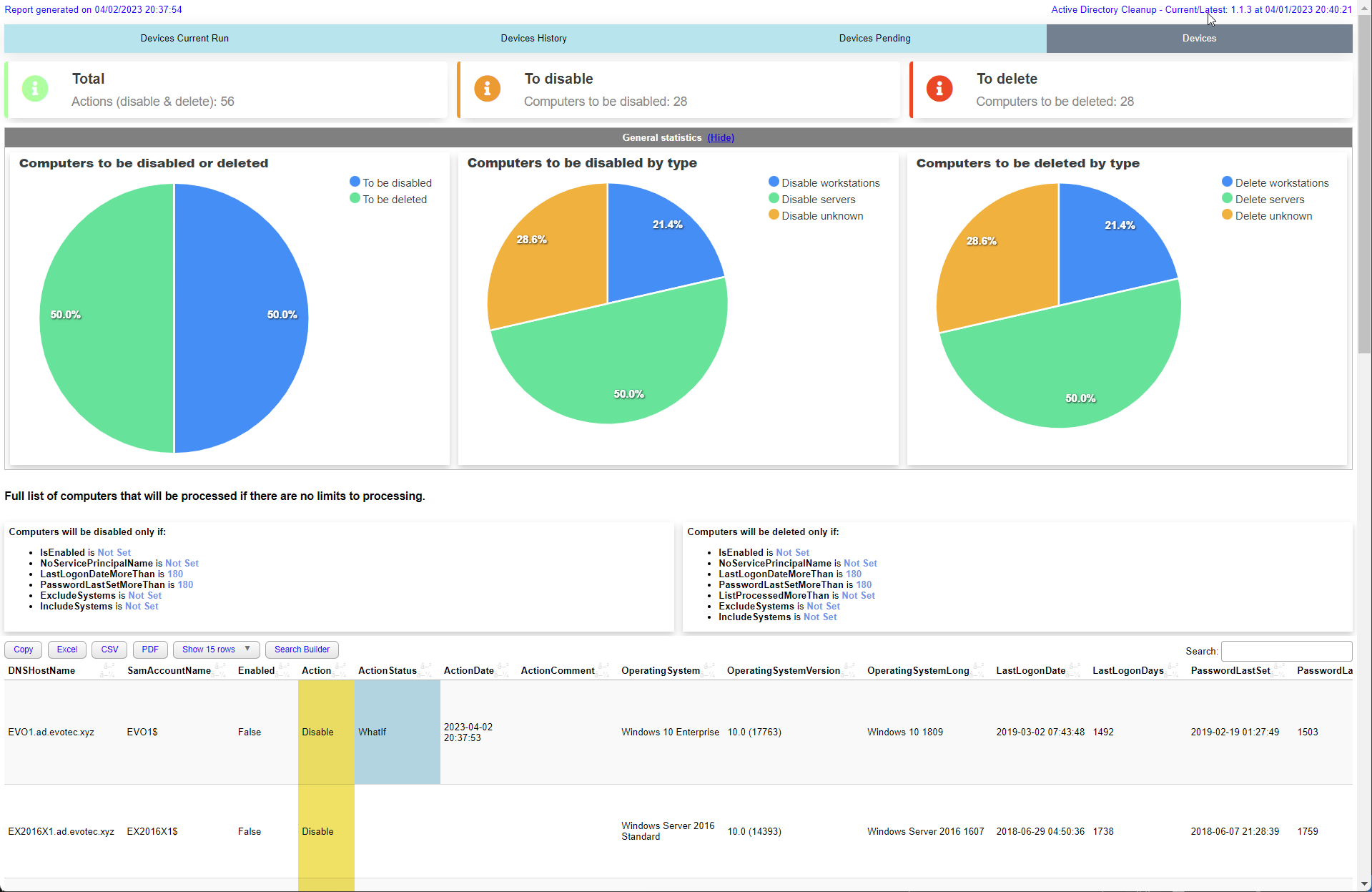
Another example with log settings and custom report path
# this is a fresh run and it will try to delete computers according to it's defaults
$Output = Invoke-ADComputersCleanup -Delete -WhatIfDelete -ShowHTML -LogPath $PSScriptRoot\Logs\DeleteComputers_$((Get-Date).ToString('yyyy-MM-dd_HH_mm_ss')).log -ReportPath $PSScriptRoot\Reports\DeleteComputers_$((Get-Date).ToString('yyyy-MM-dd_HH_mm_ss')).html
$OutputIf a computer is protected from accidental deletion, -RemoveProtectedFromAccidentalDeletionFlag now applies only to move and delete actions.
Disable-only runs will leave that protection in place.
$Output = Invoke-ADComputersCleanup `
    -Disable `
    -DisableAndMove `
    -DisableMoveTargetOrganizationalUnit 'OU=Disabled,DC=contoso,DC=com' `
    -RemoveProtectedFromAccidentalDeletionFlag `
    -WhatIfDisable `
    -ShowHTML
$OutputThis is a sample script that you can use to run the module in a scheduled task. It's a good idea to run it as a scheduled task as it will log all the actions and you can easily review them. It's very advanced with many options and you can easily customize it to your needs.
# Run the script
$Configuration = @{
    Disable                        = $true
    DisableNoServicePrincipalName  = $null
    DisableIsEnabled               = $true
    DisableLastLogonDateMoreThan   = 90
    DisablePasswordLastSetMoreThan = 90
    DisableExcludeSystems          = @(
        # 'Windows Server*'
    )
    DisableIncludeSystems          = @()
    DisableLimit                   = 2 # 0 means unlimited, ignored for reports
    DisableModifyDescription       = $false
    DisableModifyAdminDescription  = $true

    Delete                         = $true
    DeleteIsEnabled                = $false
    DeleteNoServicePrincipalName   = $null
    DeleteLastLogonDateMoreThan    = 180
    DeletePasswordLastSetMoreThan  = 180
    DeleteListProcessedMoreThan    = 90 # 90 days since computer was added to list
    DeleteExcludeSystems           = @(
        # 'Windows Server*'
    )
    DeleteIncludeSystems           = @(

    )
    DeleteLimit                    = 2 # 0 means unlimited, ignored for reports

    Exclusions                     = @(
        '*OU=Domain Controllers*'
        '*OU=Servers,OU=Production*'
        'EVOMONSTER$'
        'EVOMONSTER.AD.EVOTEC.XYZ'
    )

    Filter                         = '*'
    WhatIfDisable                  = $true
    WhatIfDelete                   = $true
    LogPath                        = "$PSScriptRoot\Logs\DeleteComputers_$((Get-Date).ToString('yyyy-MM-dd_HH_mm_ss')).log"
    DataStorePath                  = "$PSScriptRoot\DeleteComputers_ListProcessed.xml"
    ReportPath                     = "$PSScriptRoot\Reports\DeleteComputers_$((Get-Date).ToString('yyyy-MM-dd_HH_mm_ss')).html"
    ShowHTML                       = $true
}

# Run one time as admin: Write-EVXEvent -ID 10 -LogName 'Application' -EntryType Information -Category 0 -Message 'Initialize' -Source 'CleanupComputers' -CreateSource
$Output = Invoke-ADComputersCleanup @Configuration
$OutputThis is a sample script that you can use to run the module in a scheduled task. It's a good idea to run it as a scheduled task as it will log all the actions and you can easily review them. It's very advanced with many options and you can easily customize it to your needs.
Thi example shows how to use AzureAD, Intune and Jamf to clean up computers in Active Directory where computer also needs needs to be non-existant in AzureAD, Intune and Jamf or have last seen date matches in AzureAD, Intune and Jamf.
This example also moves computers to different OU's as part of the disable process.
When RemoveProtectedFromAccidentalDeletionFlag is enabled, the flag is only cleared for the move/delete steps that require it.
For long computer names, cloud matching now falls back through DNSHostName and related aliases so truncated AD names can still match Azure AD and Intune records.
# connect to graph for Azure AD, Intune (requires GraphEssentials module)
Connect-MgGraph -Scopes Device.Read.All, DeviceManagementManagedDevices.Read.All, Directory.ReadWrite.All, DeviceManagementConfiguration.Read.All
# connect to jamf (requires PowerJamf module)
Connect-Jamf -Organization 'aaa' -UserName 'aaa' -Suppress -Force -PasswordEncrypted 'aaaaa'

$invokeADComputersCleanupSplat = @{
    # safety limits (minimum amount of computers that has to be returned from each source)
    SafetyADLimit                       = 30
    SafetyAzureADLimit                  = 5
    SafetyIntuneLimit                   = 3
    SafetyJamfLimit                     = 50
    # disable settings
    Disable                             = $true
    DisableLimit                        = 3
    DisableLastLogonDateMoreThan        = 90
    DisablePasswordLastSetMoreThan      = 90
    DisableLastSeenAzureMoreThan   = 90
    DisableLastSyncAzureMoreThan   = 90
    DisableLastContactJamfMoreThan = 90
    DisableLastSeenIntuneMoreThan  = 90
    DisableAndMove                      = $true
    DisableMoveTargetOrganizationalUnit = @{
        'ad.evotec.xyz' = 'OU=Disabled,OU=Computers,OU=Devices,OU=Production,DC=ad,DC=evotec,DC=xyz'
        'ad.evotec.pl'  = 'OU=Disabled,OU=Computers,OU=Devices,OU=Production,DC=ad,DC=evotec,DC=pl'
    }
    # delete settings
    Delete                              = $true
    DeleteLimit                         = 3
    DeleteLastLogonDateMoreThan         = 180
    DeletePasswordLastSetMoreThan       = 180
    DeleteLastSeenAzureMoreThan    = 180
    DeleteLastSyncAzureMoreThan    = 180
    DeleteLastContactJamfMoreThan  = 180
    DeleteLastSeenIntuneMoreThan   = 180
    DeleteListProcessedMoreThan    = 90 # disabled computer has to spend 90 days in list before it can be deleted
    DeleteIsEnabled                     = $false # Computer has to be disabled to be deleted
    # global exclusions
    Exclusions                          = @(
        '*OU=Domain Controllers*' # exclude Domain Controllers
    )
    # filter for AD search
    Filter                              = '*'
    # logs, reports and datastores
    LogPath                             = "$PSScriptRoot\Logs\CleanupComputers_$((Get-Date).ToString('yyyy-MM-dd_HH_mm_ss')).log"
    DataStorePath                       = "$PSScriptRoot\CleanupComputers_ListProcessed.xml"
    ReportPath                          = "$PSScriptRoot\Reports\CleanupComputers_$((Get-Date).ToString('yyyy-MM-dd_HH_mm_ss')).html"
    # WhatIf settings
    #ReportOnly                     = $true
    WhatIfDisable                       = $true
    WhatIfDelete                        = $true
    ShowHTML                            = $true
    RemoveProtectedFromAccidentalDeletionFlag = $true
}

$Output = Invoke-ADComputersCleanup @invokeADComputersCleanupSplat
$OutputCloud-device cleanup has its own datastore and report because the cloud lifecycle is staged differently from AD computers. The safest operating model is to preview first, retire stale Intune-managed devices, then use pending-list age before disable/delete stages.
$Output = Invoke-CloudDevicesCleanup `
    -Retire `
    -Disable `
    -Delete `
    -ReportOnly `
    -WhatIf `
    -ShowHTML `
    -SafetyEntraLimit 1000 `
    -SafetyIntuneLimit 1000

$Output.CurrentRun
This reads existing pending actions so staged candidates are visible, but it does not write updated cleanup state.
$Output = Invoke-CloudDevicesCleanup `
    -Retire `
    -RetireLastSeenIntuneMoreThan 120 `
    -RetireLimit 10 `
    -DataStorePath "$PSScriptRoot\CloudDevices\ProcessedCloudDevices.xml" `
    -ReportPath "$PSScriptRoot\Reports\CloudDevicesRetire.html" `
    -ShowHTML `
    -Confirm

$Output.CurrentRun | Format-Table Name, RecordState, Action, ActionStatus, SelectionReason
Successful real retire actions are stored in PendingActions. Preview actions from -WhatIf, -WhatIfRetire, or -ReportOnly are not promoted to pending state.
$Output = Invoke-CloudDevicesCleanup `
    -Disable `
    -DisableListProcessedMoreThan 30 `
    -DisableLimit 10 `
    -DataStorePath "$PSScriptRoot\CloudDevices\ProcessedCloudDevices.xml" `
    -ReportPath "$PSScriptRoot\Reports\CloudDevicesDisable.html" `
    -SafetyEntraLimit 1000 `
    -WhatIfDisable `
    -ShowHTML

$Output.CurrentRun
Disable is conservative by design. Entra-backed devices are selected only when the current inventory says Enabled is exactly $true. If Graph omits the enabled state, the device is treated as unsafe and excluded.
$Output = Invoke-CloudDevicesCleanup `
    -Delete `
    -DeleteListProcessedMoreThan 30 `
    -DeleteLimit 5 `
    -DeleteIncludeIntuneOnly `
    -DeleteRemoveIntuneRecord $true `
    -DataStorePath "$PSScriptRoot\CloudDevices\ProcessedCloudDevices.xml" `
    -ReportPath "$PSScriptRoot\Reports\CloudDevicesDelete.html" `
    -WhatIfDelete `
    -ShowHTML

$Output.CurrentRun | Format-Table Name, RecordState, Action, ActionStatus, ActionError
Entra-backed delete requires the current inventory to say Enabled is exactly $false. If a pending device previously had activity timestamps but the current inventory loses them, CleanupMonster will not promote it to the next destructive stage.
$Output = Invoke-CloudDevicesCleanup `
    -RemoveAutopilotIdentity `
    -RemoveAutopilotIdentityLastContactMoreThan 90 `
    -RemoveAutopilotIdentityIntuneAssociationState Missing `
    -RemoveAutopilotIdentityEntraAssociationState EqualsSerialNumber `
    -RemoveAutopilotIdentityLimit 5 `
    -IncludeJoinType 'AzureAD joined', 'AzureAD registered' `
    -IncludeOperatingSystem '*' `
    -IncludeUnknownOperatingSystem `
    -SafetyEntraLimit 1000 `
    -SafetyIntuneLimit 1000 `
    -WhatIfRemoveAutopilotIdentity `
    -ShowHTML

$Output.CurrentRun | Format-Table Name, AutopilotSerialNumber, AutopilotManagedDeviceId, AutopilotResourceName, AutopilotLastContactedDays, ActionStatus
This stage removes only the Windows Autopilot identity. It does not delete the matching Intune managed-device record or Microsoft Entra device object. By default it requires the Autopilot associated Intune managed-device id to be missing and the Autopilot last-contact age to be older than 90 days.
$Output = Invoke-CloudDevicesCleanup `
    -Disable `
    -DisableIncludeEntraOnly `
    -DisableListProcessedMoreThan $null `
    -DisableLastSeenEntraMoreThan 90 `
    -IntuneLinkState Broken `
    -IncludeJoinType 'AzureAD joined', 'AzureAD registered' `
    -IncludeOperatingSystem '*' `
    -IncludeUnknownOperatingSystem `
    -SafetyEntraLimit 1000 `
    -SafetyIntuneLimit 1000 `
    -WhatIfDisable `
    -ShowHTML

$Output.CurrentRun | Format-Table Name, Enabled, IntuneLinkState, ClaimsIntuneManagement, EntraLastSeenDays, ActionStatus, SelectionReason
IntuneLinkState = Broken means the Microsoft Entra device claims Intune/MDM management, but current Intune managed-device inventory has no matching record. Use this to make cleanup reports read like the real operator intent instead of relying on portal 404s.
$invokeCloudDevicesCleanupSplat = @{
    Retire                         = $true
    RetireLastSeenIntuneMoreThan   = 120
    RetireLimit                    = 10

    Disable                        = $true
    DisableListProcessedMoreThan   = 30
    DisableLimit                   = 10

    Delete                         = $true
    DeleteListProcessedMoreThan    = 30
    DeleteLimit                    = 5
    DeleteRemoveIntuneRecord       = $true

    IncludeOperatingSystem         = @('iOS*', 'Android*')
    ExcludeOperatingSystem         = @('*Dedicated*')
    IncludeCompanyOwned            = $false

    SafetyEntraLimit               = 1000
    SafetyIntuneLimit              = 1000
    DataStorePath                  = "$PSScriptRoot\CloudDevices\ProcessedCloudDevices.xml"
    ReportPath                     = "$PSScriptRoot\Reports\CloudDevices_$((Get-Date).ToString('yyyy-MM-dd_HH_mm_ss')).html"
    LogPath                        = "$PSScriptRoot\Logs\CloudDevices_$((Get-Date).ToString('yyyy-MM-dd_HH_mm_ss')).log"

    WhatIfRetire                   = $true
    WhatIfDisable                  = $true
    WhatIfDelete                   = $true
    ShowHTML                       = $true
}

$Output = Invoke-CloudDevicesCleanup @invokeCloudDevicesCleanupSplat
$Output
Remove the action-specific WhatIf switches gradually after reports are reviewed and the pending-action lifecycle is behaving as expected.
Both Invoke-ADComputersCleanup and Invoke-CloudDevicesCleanup return an email body in $Output.EmailBody. A summary table shows each enabled stage's mode, candidate count, configured limit, outcome counts, and candidates without a result. One compact device table lists the device, action, outcome, selection reason, and error or subaction notes. Successful changes, WhatIf previews, report-only candidates, skipped results, and results needing review are counted separately. Full timestamps, IDs, ownership, compliance, and management details remain in the HTML report, log, and saved history.
CleanupMonster prepares the body; the scheduled script sends it. Use the same code after either cleanup call, with your configured sender, recipients, and Microsoft Graph mail connection. Omit -Suppress on the cleanup call so it returns $Output.
Import-Module Mailozaurr

$sendEmailMessageSplat = @{
    From           = 'cleanup@example.com'
    To             = 'operations@example.com'
    Subject        = 'Device cleanup results'
    Body           = $Output.EmailBody
    MgGraphRequest = $true
}
Send-EmailMessage @sendEmailMessageSplat
Counts describe action results, not unique devices. A failed overall cloud delete can include a successful subaction; inspect its notes. AD limits are global across domains and are not applied in report-only mode. Cloud report-only stages still apply their limits. The email describes the current run; the HTML report and saved history provide the longer audit trail.
Invoke-ADServiceAccountsCleanup and Invoke-ADSIDHistoryCleanup also return $Output.EmailBody for the same Mailozaurr sending pattern. Service-account emails separate disable/delete stages by domain because their limits apply per domain. Rows include the account, outcome, configured age reasons and errors; accounts selected for disable and excluded from delete are counted separately. Service-account History contains this run's results; this command does not persist a cross-run history datastore.
SID-history emails contain one result per targeted SID. Completed removals, WhatIf previews, failed attempts and report-only candidates are separate. The summary shows both object-collection and SID-removal limits. If collection reaches its object limit, the eligible population beyond that boundary is not known. A failed verification read leaves remaining SID counts unknown and flags the result for review. SID details and verification errors remain in output, configured HTML/log files and the SID-history datastore.
Service-account cleanup supports report-only reviews, disable/delete staging, and explicit safety guardrails.
If an account matches both sets of criteria in the same run, it stays in the disable stage and is skipped from delete.
By default DisableLimit and DeleteLimit are both 1.
$Output = Invoke-ADServiceAccountsCleanup -Disable -Delete -DisableLastLogonDateMoreThan 90 -DeleteLastLogonDateMoreThan 180 -ReportOnly
$Output.CurrentRun$invokeADServiceAccountsCleanupSplat = @{
Disable = $true
DisableLastLogonDateMoreThan = 90
DisablePasswordLastSetMoreThan = 90
DisableLimit = 2
Delete = $true
DeleteLastLogonDateMoreThan = 180
DeletePasswordLastSetMoreThan = 180
DeleteLimit = 1
SafetyADLimit = 10
IncludeAccounts = @('gmsa-*', 'msa-*')
ExcludeAccounts = @('gmsa-keep-*')
ReportPath = "$PSScriptRoot\Reports\ServiceAccounts_$((Get-Date).ToString('yyyy-MM-dd_HH_mm_ss')).html"
WhatIfDisable = $true
WhatIfDelete = $true
}
$Output = Invoke-ADServiceAccountsCleanup @invokeADServiceAccountsCleanupSplat
$Output$Output = Invoke-ADServiceAccountsCleanup `
-Disable `
-Delete `
-DisableLastLogonDateMoreThan 90 `
-DeleteLastLogonDateMoreThan 180 `
-WhatIfDisable `
-WhatIfDelete `
-ReportPath "$PSScriptRoot\Reports\ServiceAccounts.html"
$OutputThis path is focused on reviewable, targeted SID history removal with strong filtering and very small starter limits.
The first thing you should do is to run the module in a report only mode. It will show you how many SID History entries are there to remove.
$Output = Invoke-ADSIDHistoryCleanup -WhatIf -ReportOnlyCleanup of specific SID History entries along with report output and email-friendly reporting.
$invokeADSIDHistoryCleanupSplat = @{
    Verbose                 = $true
    WhatIf                  = $true
    IncludeSIDHistoryDomain = @(
        'S-1-5-21-3661168273-3802070955-2987026695'
        'S-1-5-21-853615985-2870445339-3163598659'
    )
    # Process only specific object classes
    IncludeObjectType        = @('Computer', 'Group')
    #ExcludeObjectType       = 'User'
    #IncludeType             = 'External'
    RemoveLimitSID          = 2
    RemoveLimitObject       = 2
    SafetyADLimit           = 1
    ShowHTML                = $true
    Online                  = $true
    DisabledOnly            = $false
    LogPath                 = "$PSScriptROot\ProcessedSIDHistory.log"
    ReportPath              = "$PSScriptRoot\ProcessedSIDHistory.html"
    DataStorePath           = "$PSScriptRoot\ProcessedSIDHistory.xml"
}

# Run the script
$Output = Invoke-ADSIDHistoryCleanup @invokeADSIDHistoryCleanupSplat
$Output | Format-Table -AutoSize

# Lets send an email
$EmailBody = $Output.EmailBody

# Send an email with the report
Connect-MgGraph -Scopes 'Mail.Send' -NoWelcome
Send-EmailMessage -To 'przemyslaw.klys@test.pl' -From 'przemyslaw.klys@test.pl' -MgGraphRequest -Subject "Automated SID Cleanup Report" -Body $EmailBody -Priority Low -Verbose