
YANF is a Windows Forms library for C# and Visual Basic apps: controls, a message box, loading screens, a borderless form and helpers, for .NET Framework 4.8.1, .NET 8 and .NET 10 on Windows.
https://www.nuget.org/packages/Tynab.YANF
PM> NuGet\Install-Package Tynab.YANF -Version 2.0.0
> dotnet add package Tynab.YANF --version 2.0.0
2.0 has breaking changes: the upgrade guide in CHANGELOG.md goes through them. Version 1.0.1 remains available for the old API. Do not use version 1.0.2: that package has no YANF.dll under lib/, so it adds no reference.
Release notes and the versioning policy are in CHANGELOG.md.
| Your app | Uses |
|---|---|
| .NET Framework 4.8.1 | lib/net481 |
.NET 8 and .NET 9 (net8.0-windows, net9.0-windows) |
lib/net8.0-windows7.0 |
.NET 10 and later (net10.0-windows) |
lib/net10.0-windows7.0 |
| .NET 6 and .NET 7 | lib/net481, with warning NU1701 |
The three builds have the same API. On .NET the default font is Segoe UI 9pt, so YANF controls that take their font family from it use Segoe UI; to keep the .NET Framework look, call Application.SetDefaultFont(new Font("Microsoft Sans Serif", 8.25F)) before creating any window.

Examples marked Recommended use APIs added in 2.0 (see CHANGELOG.md). The 1.0 APIs in the other examples keep working.
/* Show English MessageBox with options (Recommended) */
using YANF.Script;
using static System.Windows.Forms.MessageBoxButtons;
using static System.Windows.Forms.MessageBoxDefaultButton;
using static System.Windows.Forms.MessageBoxIcon;
using static YANF.Script.YANConstant.MsgBoxLang;

// Button click
private void BtnExit_Click(object sender, EventArgs e)
{
    var options = new YANMessageBoxOptions
    {
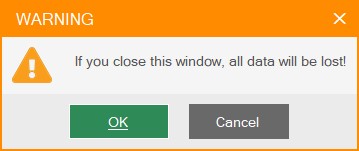
        Caption = "WARNING",
        Text = "If you close this window, all data will be lost!",
        Buttons = OKCancel,
        Icon = Warning,
        DefaultButton = Button2, // ENTER presses Cancel; ESC presses Cancel too
        Language = ENG           // or VIE, JAP; null = the English default
    };
    // Owned by this form; called from a worker thread, the box is shown on this form's UI thread
    if (YANMessageBox.Show(this, options) == DialogResult.OK)
    {
        Close();
    }
}
YANMessageBoxOptions also has TopMost (default true) and StrictClose (default false; when true the close box ✕ gives what ESC gives, and is hidden for YesNo and AbortRetryIgnore).
The 1.0 overloads still work:
/* Show Japanese MessageBox */
using YANF.Script;
using static System.Windows.Forms.MessageBoxButtons;
using static System.Windows.Forms.MessageBoxIcon;
using static YANF.Script.YANConstant.MsgBoxLang;

// Method
private void Func()
{
    ...
    YANMessageBox.Show("情報", "完了!", OK, Information, JAP);
	...
}
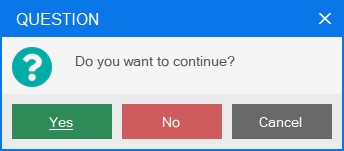
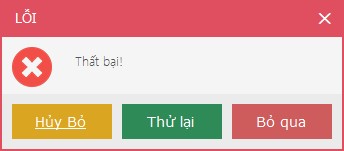

YANLoader shows a Load, Wait or Update screen over a form, on the form's own UI thread, while async work runs. The screen appears only when the work is still running after ShowDelay (250 ms by default), and follows the form when it moves or is resized. The form takes no input until the work has ended, and always gets it back, also after an exception or a cancellation.
/* Show Load screen with progress and cancellation (Recommended) */
using System.Collections.Generic;
using System.Threading;
using System.Threading.Tasks;
using YANF.Script;

// Button click (async: the UI thread stays free while the work runs)
private async void BtnLoad_Click(object sender, EventArgs e)
{
    // The form takes no input while the screen is up, so cancel from code: here after 30 seconds
    using (var cts = new CancellationTokenSource(TimeSpan.FromSeconds(30)))
    {
        try
        {
            var options = new YANLoaderOptions
            {
                Kind = YANLoaderKind.Load, // or Wait, Update
                ShowDelay = 250            // short work shows no screen at all
            };
            // The work runs on the thread pool; the screen closes when it ends, also when it fails or is cancelled
            var rows = await this.RunWithLoaderAsync((progress, ct) => Task.Run(() => LoadRows(progress, ct), ct), options, cts.Token);
            ...
        }
        catch (OperationCanceledException)
        {
            ...
        }
    }
}

// Work (worker thread)
private List<string> LoadRows(IProgress<int> progress, CancellationToken ct)
{
    var rows = new List<string>();
    for (var percent = 1; percent <= 100; percent++)
    {
        ct.ThrowIfCancellationRequested();
        ...
        // Thread-safe: the screen shows the latest value
        progress.Report(percent);
    }
    return rows;
}
Without options or a token: await this.RunWithLoaderAsync((progress, ct) => Task.Run(() => Work(progress, ct), ct));.
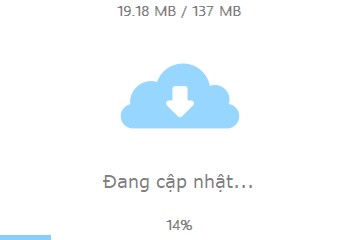
The progress passed to the work is the YANLoaderScope of the screen: cast it to call SetProgress(percent, detail), which also shows a detail text on the Update screen. Around awaited work on the UI thread, use YANLoader.Show in a using block:
/* Show Update screen around awaited work (Recommended) */
private async void BtnUpdate_Click(object sender, EventArgs e)
{
    using (var scope = YANLoader.Show(this, new YANLoaderOptions { Kind = YANLoaderKind.Update }))
    {
        for (var percent = 1; percent <= 100; percent++)
        {
            await DownloadPartAsync(percent);
            scope.SetProgress(percent, $"{percent * 137 / 100} MB / 137 MB");
        }
    } // the form gets its input back here, and the screen fades out
}
Legacy: the 1.0 screen services still work. Use them for work that blocks the UI thread, because they run the screen on a thread of its own.
/* Show Load screen (1.0 service) */
using YANF.Script;
using YANF.Script.Service;

// Fields
private IYANDlvScrService _dlvScrService;
private int _percent;

// Button click
private void Btn_Click(object sender, EventArgs e)
{
    ...
    _dlvScrService = new YANLoadScrService();
    _dlvScrService.OnLoader(this);
    this.FadeOut();
    ...
}

// Method
private void Func()
{
    ...
    // Thread-safe: call it from the UI thread or from a worker thread
    _dlvScrService.PublishValue(_percent, null, 0);
    ...
}

// Work done (UI thread)
private void Done()
{
    ...
    // Thread-safe too, and safe to call more than once
    _dlvScrService.OffLoader();
    this.FadeIn();
    ...
}
YANForm is a base form for apps that draw their own title bar. It is borderless, and by default it has rounded corners, a drop shadow and resize edges.
/* A borderless form with a custom title bar (Recommended) */
using System;
using System.Windows.Forms;
using YANF.Screen;

// Derive from YANForm instead of Form (or add an Inherited Form based on YANForm)
public partial class MainFrm : YANForm
{
    // Constructor
    public MainFrm()
    {
        InitializeComponent();
        // The top 32 px move the form like a title bar, and a double-click maximizes or restores it
        CaptionHeight = 32;
        // So do the header panel and the title label that cover that band
        RegisterCaptionControl(pnlHeader);
        RegisterCaptionControl(lblTitle);
        // Keep the resize edges (ResizeBorderWidth, 6 px) free of docked panels
        Padding = new Padding(6);
    }

    // Title bar buttons
    private void BtnMinimize_Click(object sender, EventArgs e) => WindowState = FormWindowState.Minimized;
    private void BtnMaximize_Click(object sender, EventArgs e) => WindowState = WindowState == FormWindowState.Maximized ? FormWindowState.Normal : FormWindowState.Maximized;
    private void BtnClose_Click(object sender, EventArgs e) => Close();
}RoundedCorners, CornerRadius, DropShadow, Resizable, ResizeBorderWidth and CaptionHeight can also be set in the designer (sizes in pixels at 96 dpi, scaled with the DPI). Windows 11 rounds the window itself, with its shadow; older Windows get a region of CornerRadius. The taskbar button minimizes and restores the form, and it maximizes to the working area, so the taskbar stays visible. Windows does not apply Aero Snap to a borderless window.
/* Fade and drag a borderless form (Recommended) */
using YANF.Script;

// Constructor
public LoginFrm()
{
    InitializeComponent();
    // Fade in each time the form is shown and out when it closes (ms), without blocking the UI thread.
    this.EnableFade(250, 250);
    // Drag the form by its header panel and title label, through Windows' own move loop (across monitors; ESC cancels)
    pnlHeader.EnableDrag();
    lblTitle.EnableDrag();
}

// Button click
private async void BtnCheck_Click(object sender, EventArgs e)
{
    // Dim the form while it waits, then restore it
    await this.FadeToAsync(0.6, 150);
    ...
    await this.FadeToAsync(1, 150);
}
EnableFade replaces the 1.0 FadeIn() / FadeOut() calls in Shown and FormClosing (do not combine them): the fade no longer blocks the UI thread, a modal form keeps its DialogResult, and a cancelled close no longer leaves an invisible form. EnableDrag replaces the three handlers YANEvent.MoveFrm_MouseDown, MoveFrm_MouseMove and MoveFrm_MouseUp. Aero Snap applies only to a form with a sizable border, not to a borderless one. A press that drags the form gives the control no Click, so use panels, labels or pictures as handles, not buttons.
/* Get controls by type (Recommended) */
using System.Windows.Forms;
using YANF.Control;
using YANF.Script;

// Constructor
public LoginFrm()
{
    InitializeComponent();
    // Every YANTxt of the form, also inside panels
    foreach (var txt in this.GetAllObjs<YANTxt>())
    {
        txt.Enter += Txt_Enter;
    }
    // Derived types too: Panel also finds YANGradPnl
    foreach (var pnl in this.GetAllObjs<Panel>())
    {
        pnl.EnableDrag();
    }
    // Skip the children of YANDdl (its inner label)
    foreach (var lbl in this.GetAllObjs<Label>(c => !(c is YANDdl)))
    {
        lbl.EnableDrag();
    }
}
The 1.0 GetAllObjs(typeof(YANTxt)) still works and matches the exact type only.
YANF scales with the DPI when the app is DPI aware. At 96 dpi (100 %), and in apps that are not DPI aware (the default for .NET Framework apps, which Windows stretches as a bitmap), nothing is scaled: YANF draws the same pixel sizes as 1.0.1.
What scales: the sizes the controls draw with (BorderSize, BorderRadius, YANPrg.ChannelHeight and SliderHeight, the toggle, the radio circle, the arrow and the calendar icon; the property values stay in pixels at 96 dpi), YANTxt and YANNb (with their form), the Load, Wait and Update screens and the message box, and the corners, resize edges and caption band of YANForm. In a per-monitor aware app they are scaled again when a window moves to a monitor with another scale. Your own forms must scale too: design them at 96 dpi with AutoScaleMode.Dpi (or Font).
.NET Framework 4.8.1: make the app per-monitor aware (PerMonitorV2) in both files below, with the same value (the manifest wins when they differ). Add the manifest with Add > New Item > Application Manifest File, and declare Windows 10 compatibility in it: the Windows Forms setting needs it. Keep Application.EnableVisualStyles() in Main.
<!-- app.manifest, inside <assembly> -->
<compatibility xmlns="urn:schemas-microsoft-com:compatibility.v1">
  <application>
    <!-- Windows 10 and 11 -->
    <supportedOS Id="{8e0f7a12-bfb3-4fe8-b9a5-48fd50a15a9a}" />
  </application>
</compatibility>
<application xmlns="urn:schemas-microsoft-com:asm.v3">
  <windowsSettings>
    <dpiAwareness xmlns="http://schemas.microsoft.com/SMI/2016/WindowsSettings">PerMonitorV2</dpiAwareness>
  </windowsSettings>
</application>
<!-- App.config, inside <configuration>: turns on the per-monitor DPI support of Windows Forms -->
<System.Windows.Forms.ApplicationConfigurationSection>
<add key="DpiAwareness" value="PerMonitorV2" />
</System.Windows.Forms.ApplicationConfigurationSection>.NET 8 and .NET 10: set the mode in the project file and call ApplicationConfiguration.Initialize() first in Main (C#), or call Application.SetHighDpiMode(HighDpiMode.PerMonitorV2) before the first window is created (Visual Basic with the application framework: set e.HighDpiMode in the ApplyApplicationDefaults event). Leave DPI settings out of the manifest (analyzer WFAC010).
<PropertyGroup>
  <ApplicationHighDpiMode>PerMonitorV2</ApplicationHighDpiMode>
</PropertyGroup>
The demo app is set up both ways (see below).
The demo forms (MainFrm, Demo1, Demo2) are no longer part of the package (1.0.x shipped them inside YANF.dll).
They live in the sample project samples/YANF.Demo: open YANF.sln and run YANF.Demo (.NET Framework 4.8.1 or .NET 10). It is per-monitor DPI aware, and its profile form (Demo2) is a YANForm.
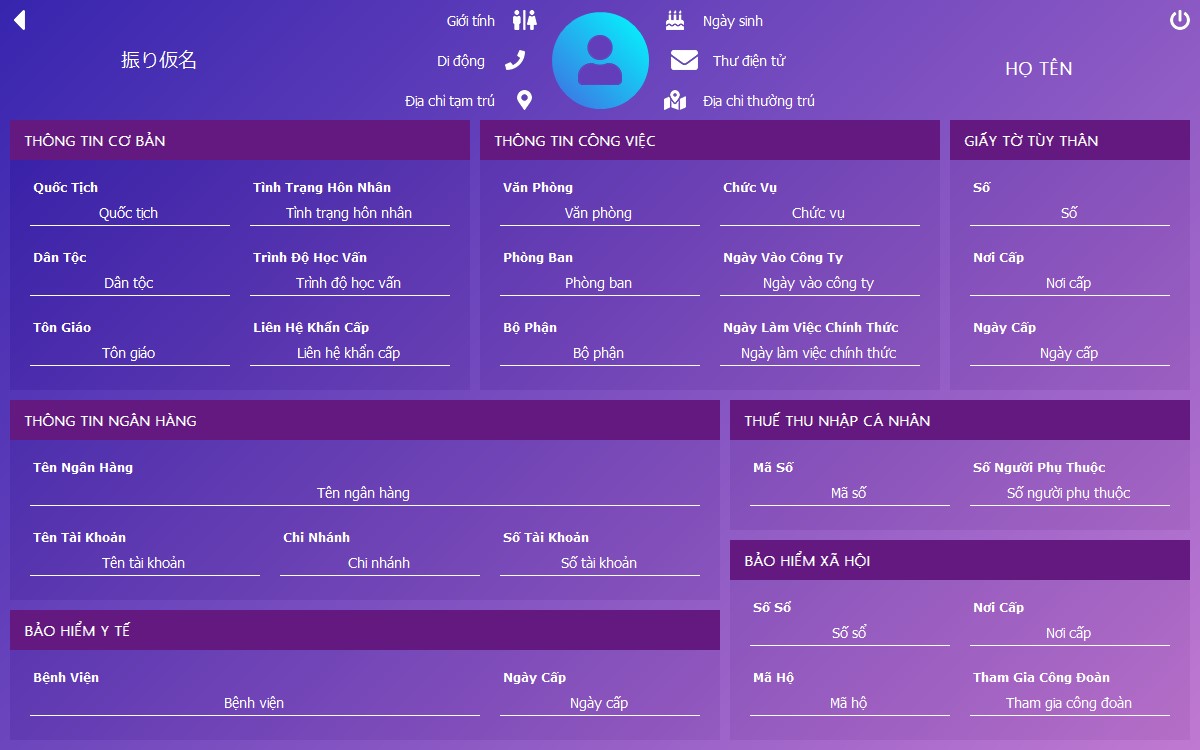
- MessageBox new style (support for 3 languages)
- Loader: Load, Wait or Update screen over a form while async work runs (
YANLoader, or the screen services) - Borderless form with rounded corners, shadow and resize edges (
YANForm)
- Button new style
- ProgressBar new style
- RadioButton new style
- TextBox new style (placeholder, password)
- CirclePictureBox
- DropdownList
- GradientPanel
- NumBox
- ToggleButton
- Numeric:
YANMath.Min/Max - Text:
YANString.ParseDouble,ParseInt,TryParseDouble,TryParseInt - Controls:
YANController.GetAllObjs,GetItemListFromFilesInFolderAdv - Display:
YANDisplay.FadeToAsync,EnableFade,FadeIn/FadeOut,SetRoundRegion,HighLightLblLinkByCtrl - Timer:
YANTimer.StartAdv/StopAdv - Event:
YANEvent.EnableDrag/DisableDrag
Requirements: Windows with the .NET Framework 4.8.1 runtime, the .NET 10 SDK, and Visual Studio 2026 (18.0) or later (workload ".NET desktop development") or Build Tools for Visual Studio 2026. The library builds for net481, net8.0-windows and net10.0-windows. Visual Studio 2022 17.14 still builds the solution, with warning NETSDK1233: targeting .NET 10 is not supported there, so neither are the net10.0-windows builds of the library, the demo app and the tests.
Build in Visual Studio (open YANF.sln) or from a Developer Command Prompt. Use Visual Studio's MSBuild: dotnet build cannot embed the bitmap resources of the forms for .NET Framework.
msbuild YANF.sln -restore -p:Configuration=Release
Run the tests (xUnit, tests/YANF.Tests, for net481 and net10.0-windows) from Test Explorer or after the build. They create and show windows, so they need an interactive desktop.
dotnet test tests/YANF.Tests/YANF.Tests.csproj -c Release --no-build --framework net481
dotnet test tests/YANF.Tests/YANF.Tests.csproj -c Release --no-build --framework net10.0-windows
Run the demo app by setting samples/YANF.Demo as the startup project. Create the package (it is validated against 1.0.1 for breaking changes):
msbuild YANF/YANF.csproj -t:Pack -p:Configuration=Release
Every push to main and every pull request is built, tested and packed by GitHub Actions; a v* tag publishes the package to nuget.org.