
Turns an image into pixel art: a small grid of pixels in a few colours.
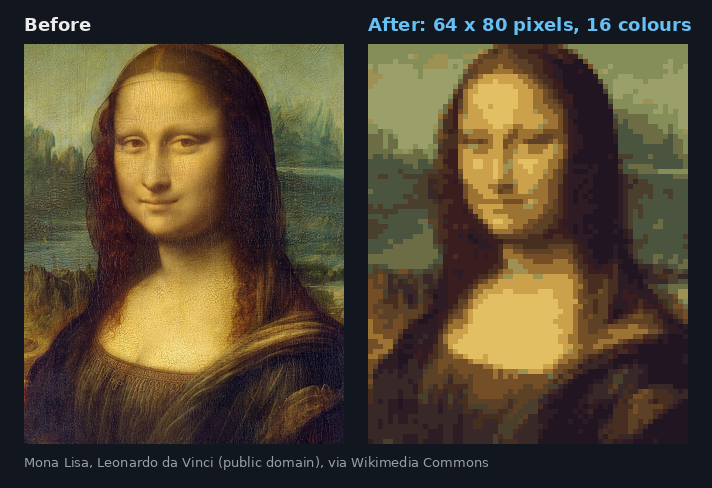
Mona Lisa (public domain, via Wikimedia Commons), and filter(source, { width: 64, height: 80, colors: 16 }) scaled up without smoothing.
The image is cropped to the target ratio, averaged down to the target size, then reduced to a palette of at most colors colours computed from the image itself (median cut, no dithering). Alpha becomes binary, opaque or transparent, unless asked otherwise. The same input always gives the same output. It is written in TypeScript, depends on nothing, and runs in a browser, in a Web Worker or on Node.
npm install pixelcrushES modules only. In TypeScript, the types need the DOM or WebWorker lib, or skipLibCheck.
From RGBA pixels, anywhere:
import { filter } from "pixelcrush"

const source = { width, height, data } // data: Uint8ClampedArray of width × height × 4 bytes
const { pixels, palette } = filter(source, { width: 64, colors: 16 })
// pixels: { width: 64, height: 80, data }, palette: [[r, g, b], ...]
On Node, wrap a Buffer of raw RGBA in a Uint8ClampedArray view: new Uint8ClampedArray(buffer.buffer, buffer.byteOffset, buffer.length).
From an image in the browser:
import { drawPixels, pixelateImage } from "pixelcrush"

const image = new Image()
image.src = url
await image.decode()

const { pixels } = pixelateImage(image, { width: 64, colors: 16 })
drawPixels(canvas, pixels) // scale the canvas up with CSS: image-rendering: pixelated
pixelateImage takes a decoded <img>, a <video>, a canvas or an ImageBitmap, reads its pixels once at its size and runs filter on them, so it works in a Web Worker too. An image from another origin must be loaded with crossOrigin = "anonymous" from a server that allows it, or its pixels cannot be read.
widthandheight: the target size in pixels. With one side only, the other follows the image's ratio. With both, the image is cropped to that ratio.colors: 1 to 256, 32 by default.crop:"cover"(the default) keeps the largest region of the target ratio;"none"stretches the whole image.anchor:{ x, y }from 0 to 1, where a cover crop sits; the middle by default.alpha:"binary"(the default) makes every pixel opaque or transparent;"keep"keeps the averaged alpha.
An option out of range throws a RangeError.
filter(pixels, options)returns{ pixels, palette }.pixelate(pixels, options)returns the pixels on the grid, before colour reduction.quantize(pixels, colors = 32)returns{ pixels, palette };buildPalette(pixels, colors = 32)returns the palette alone, andapplyPalette(pixels, palette)maps pixels to it, to give several images or sizes the same colours.cropRegion(sourceWidth, sourceHeight, options)returns{ x, y, width, height }, the part of the source a cover crop keeps.pixelateImage(image, options)isfilteron a browser image;readPixels(image)reads its pixels,sourceSize(image)gives its size, anddrawPixels(canvas, pixels)draws a result on a canvas, sized to it.
Contributions are welcome: open an issue or a pull request. Before sending one:
npm install
npm test
npm run typecheck
npm run build
CI runs these and a smoke test of the build on every pull request. Releases are described in CONTRIBUTING.md.
MIT